¶ Managing Applications
The Applications section in the MDM allows you to easily add or remove apps according to the user's needs. Android apps are packaged into "APK" files; you will need an APK file for each Android app you want to load into the MDM.
¶ Adding a New Application
- Source the APK file from the software developer to prepare to load into the MDM. Where possible ensure that the application is a Universal APK that will install on all devices using the same file. HADM is capable of splitting APK's based on the CPU type but universal APK's are easier to maintain.
Note that the MDM cannot connect to Google Play to download an app, you will need to source the APK file manually. The best place to source the APK is directly from the software vendor.
-
Once the app APK is downloaded, you will need to upload it into the MDM system.
-
From the Application tab click on add
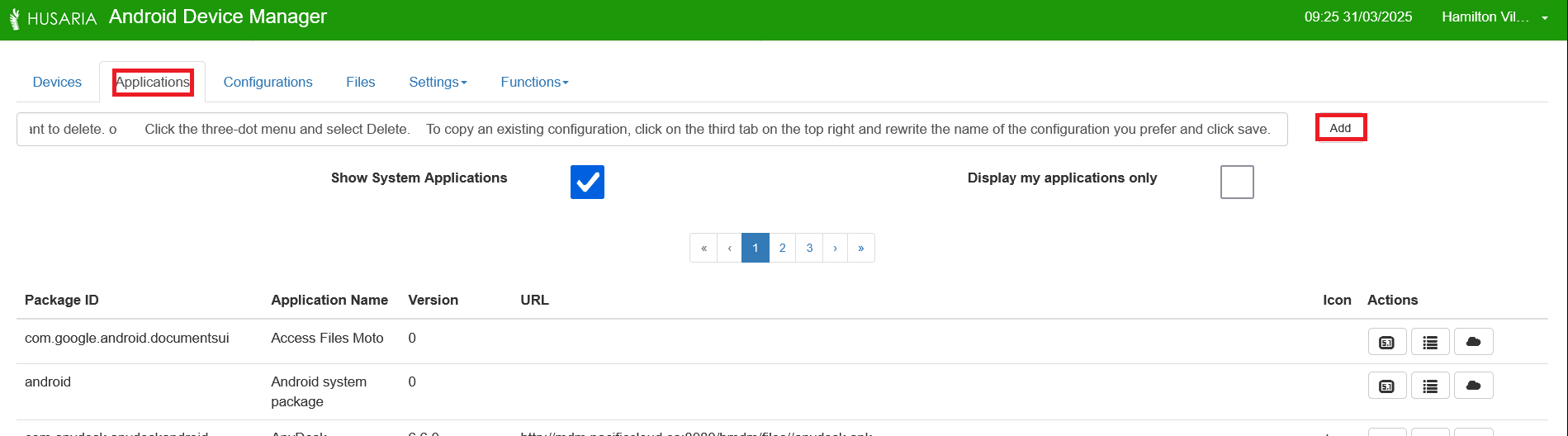
-
Follow the prompts to upload and register the app for installation on devices.
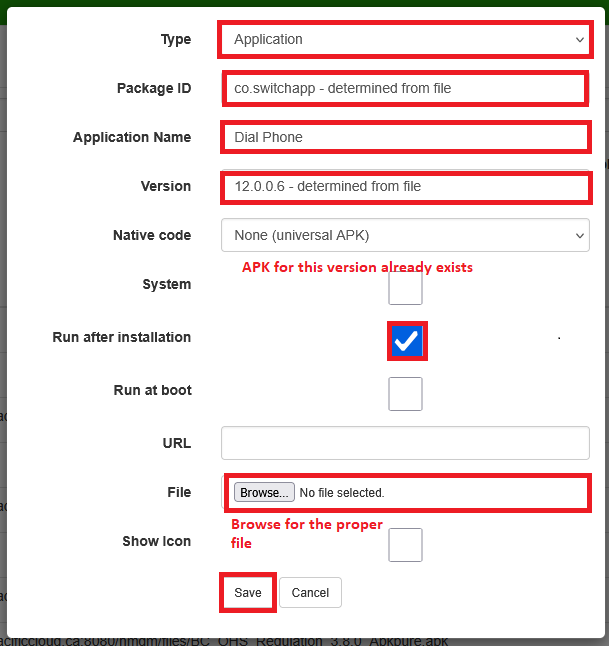
The Application is now loaded into the MDM database and can be selected for installation on devices via the Configurations tab.
-
¶ Updating an Existing Application
- In practice unless an application vendor is recommending an update, or there is a specific reason to update an application it is recommended to continue using the installed working version. Sometimes application vendors will require updates to continue to function, and will provide the update to the application.
- Ensure that you have downloaded the appropriate universal APK to load into HADM.
- In the application tab seach for the application that you wish to update. As an example below we searched for browser.
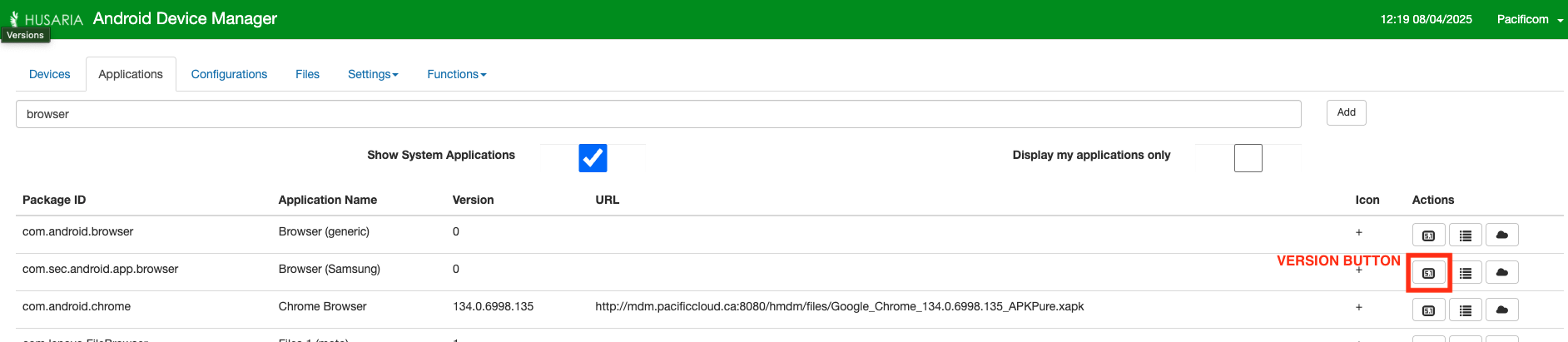
- Then select the Versions button on the right side
- The screen will open to list all the uploaded versions of an application.
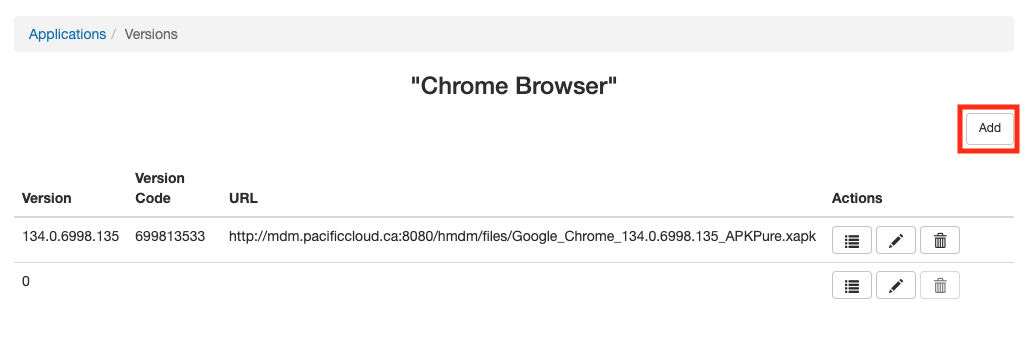
Versions listed as 0 in HADM are the versions that came installed on the phone originally, other versions will have sequential numbering.
- Click on the add button and upload the file in the same way as adding a new application.
- Click on the add button and upload the file in the same way as adding a new application.
- Once the app APK is uploaded, you will need to change the configuration to allow the update.
- Check the Configurations page for additional details.