¶ Husaria One Login
To log into the Husaria One portal go to https://one.husariatech.com.php
On the Husaria One Login page enter Username and Password
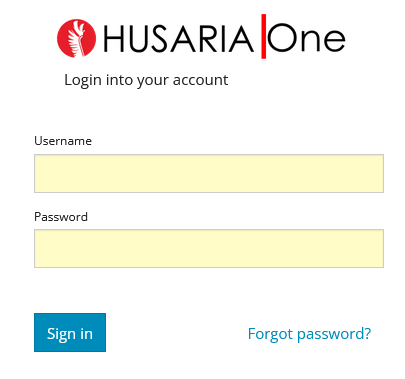
- Click Sign In.
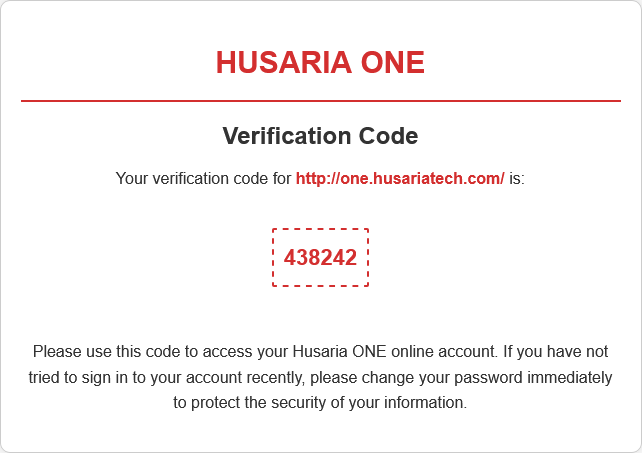
- At the prompt, enter the security pin that was sent to your email account.
- Click on the HANS to access the software.
¶ If you are not receiving the two-factor authentication emails in your inbox or spam to try the following:
- Delete the browsing data/ cache of your web browser and try again
- Change web browser (chrome to firefox, vice versa) for receiving emails and try again
- Reach out to your IT contact that manages your email service (@xxxxxxxx.ca), ensure emails from "no-reply@husariatech.com" is not being blocked and have it sent directly to your inbox
¶ Navigation Overview
¶ Main Page / Alarms Page
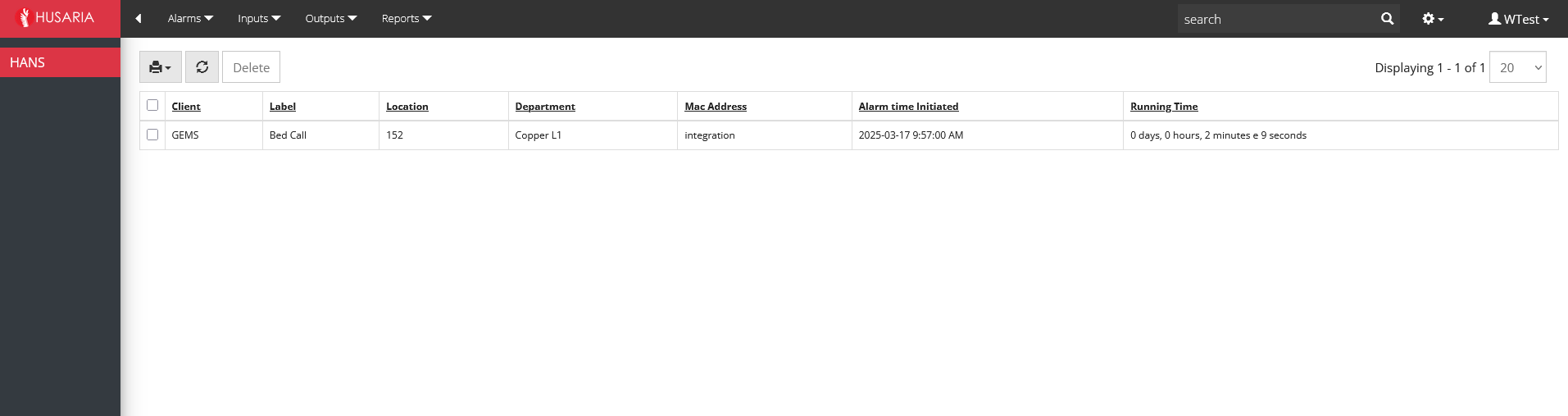
Main page has four headings across the top of the page and displays the current alarms.
- Alarms
- Inputs
- Outputs
- Reports
¶ Alarms
The Alarms page displays all active alarms in real time. These are triggered by devices such as:
• Pendants (W5/W6) – BLE buttons that residents press in case of emergency.
• Bed Exit Sensors / Bathroom Stations – Connected through Jenon and MiAlert systems.
• Pullcords – Emergency cords installed in critical locations like bathrooms.
Each alarm includes:
• Alarm type (pendant, bed alarm, bed exit, bathlarm)
• Location (room or area)
• Active time (how long it has been triggered)
Important: The alarm will only stop after it is manually cleared on the physical device. Once a caregiver answers the alert call, they are responsible for going to the resident's room and clearing the alarm at the source.
¶ Inputs
This section contains all devices connected to the system and responsible for generating alerts.
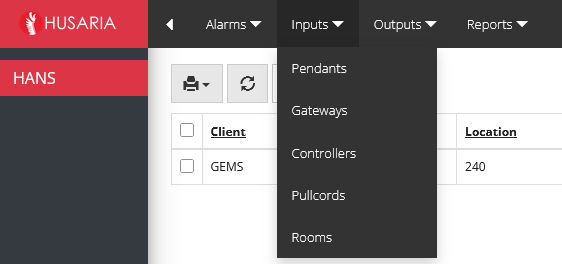
¶ ▪️ Pendants
• We use W5 and W6 BLE pendants.
• They are wearable devices that residents press once or double-press to trigger an alert.
• How it works:
- Resident presses the pendant.
- BLE signal is sent to the nearest Gateway.
- The gateway relays the signal to the HANS server.
- HANS generates a phone call to the phones defined in the configured group/escalation and departament.
¶ ▪️ Gateways
• We use BLE-to-network gateways.
• Their job is to capture BLE signals from pendants and send the data to the HANS server via the local network.
• They must be strategically placed throughout the building for full coverage.
¶ ▪️ Rooms
• Each room is configured with:
o Room number
o Associated department (e.g., 2nd floor west, East Wing)
• Helps track where the alarm was generated.
¶ ▪️ Controllers / Pullcords / Outsource
• Controllers: BLE beacons for additional tracking/location.
• Pullcords: Wall-mounted cords (typically in bathrooms).
• Outsource: Nursing stations or external call points.
¶ Outputs
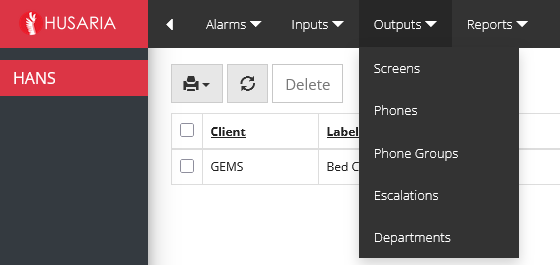
¶ ▪️ Phones
• SIP phones that receive the alert calls.
• The Phone ID should follow a standard naming format, usually:
- Client initials + extension (e.g., KIN200 for a client named Kinvillage, extension 200).
• The phone must be registered and active in the system.
¶ ▪️ Phone Groups
• Phones are organized into groups by area or shift.
• Example: WESTVIEW 1F — represents the 1st floor at Westview facility.
• Multiple phones can be assigned to a group, allowing mass alerting.
¶ ▪️ Escalations
• Define the sequence of alert delivery if calls are unanswered.
• Example of a typical setup:
o First Escalation: Care staff — 5-minute window.
o Second Escalation: Backup care staff — 5-minute window.
o Third Escalation: Care + Nurse — final backup group.
Calls are attempted every 3 minutes during each escalation stage. This can be adjusted according to the needs of each client.
¶ ▪️ Departments
• Departments control which groups are active based on time shifts.
• Each department can be configured with:
o Morning
o Afternoon
o Night
Ensures alerts are routed only to phones belonging to staff currently on shift.
¶ How to Delete an Alarm
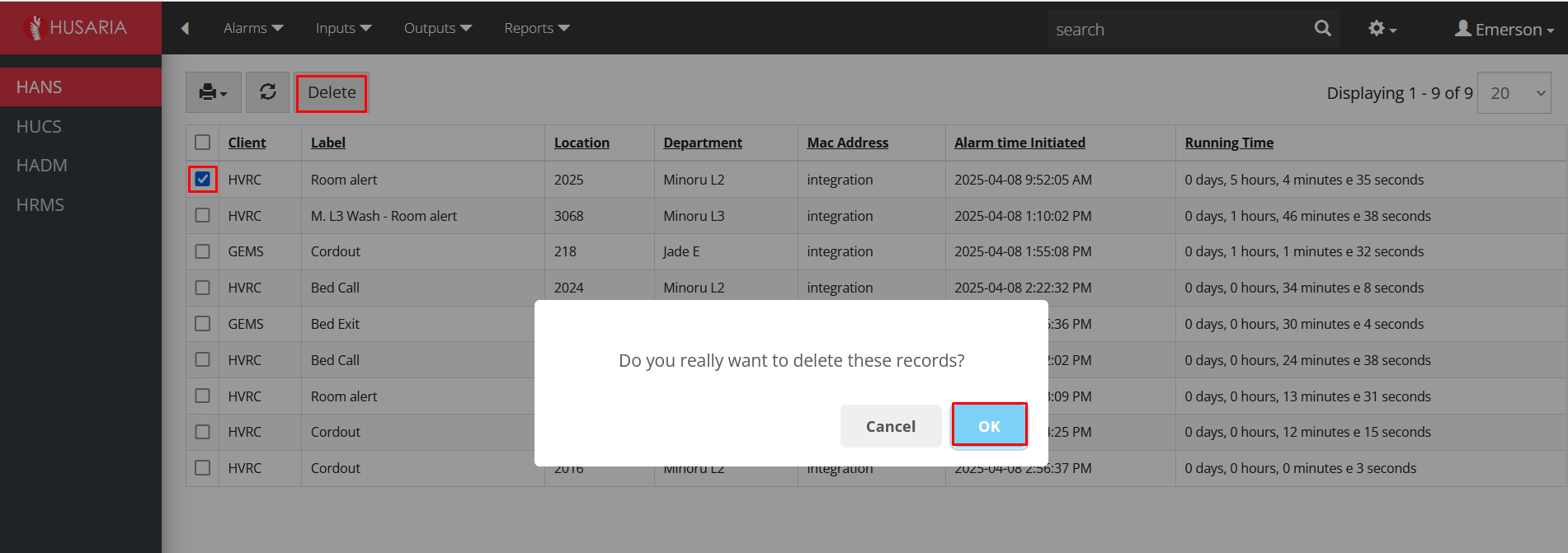
Select the Alarm:
Go to the alarm list.
Find and click the checkbox beside the alarm.
Click on "Delete":
Click the "Delete" button on the top toolbar.
Confirm Deletion:
A confirmation prompt will appear.
Click "OK"
Alarm Deleted:
The alarm will be removed from the system.
This is not a live page. The page must be refreshed to get the most current alarm notifications. Press "F5" or click
to refresh the page.
¶ How to Add a Pendant on OneHusaria
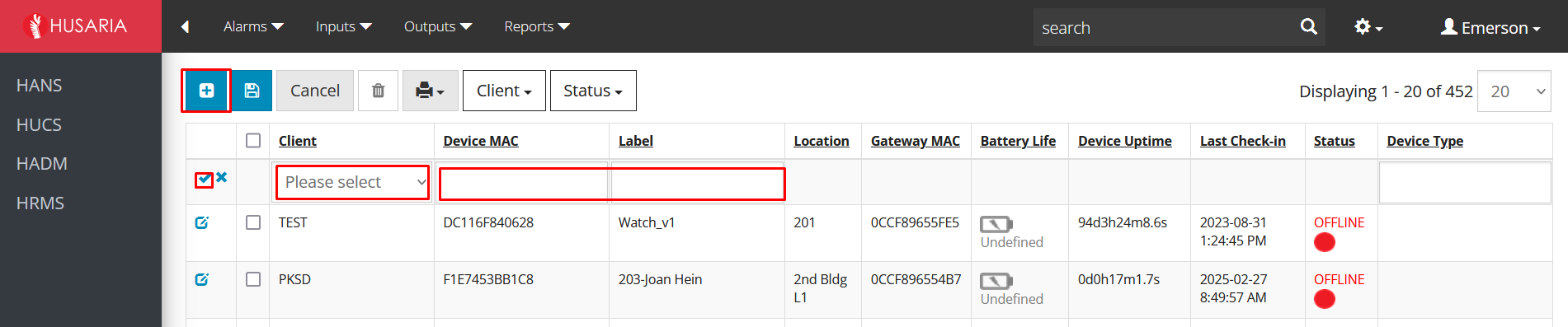
Go to Inputs > Pendants.
Click on the + tab.
In the new window:
Column 1: Select customer.
Column 2: Enter Device MAC.
Column 3: Enter Label.
Click Save.
¶ How Pendants Communicate:
Use BLE to send alerts to the nearest gateway.
Gateways relay signals to OneHusaria.
Ensures fast, low-energy communication.
¶ Benefits:
Long battery life
Accurate signal reception
Fast alert transmission