PAGE IS UNDER CONSTRUCTION
¶ Configuring Pendants
¶ ▪️ Pendants
• We use W5 and W6 BLE pendants.
• They are wearable devices that residents press once or double-press to trigger an alert.
• How it works:
- Resident presses the pendant.
- BLE signal is sent to the nearest Gateway.
- The gateway relays the signal to the HANS server.
- HANS generates a phone call to the phones defined in the configured group/escalation and departament.
¶ Accessing Pendants Page
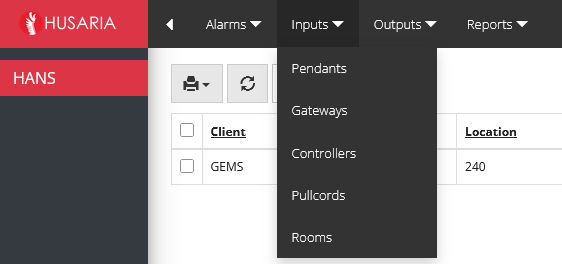
Inputs
This section contains all devices connected to the system and responsible for generating alerts.
¶ Viewing Pendant Status
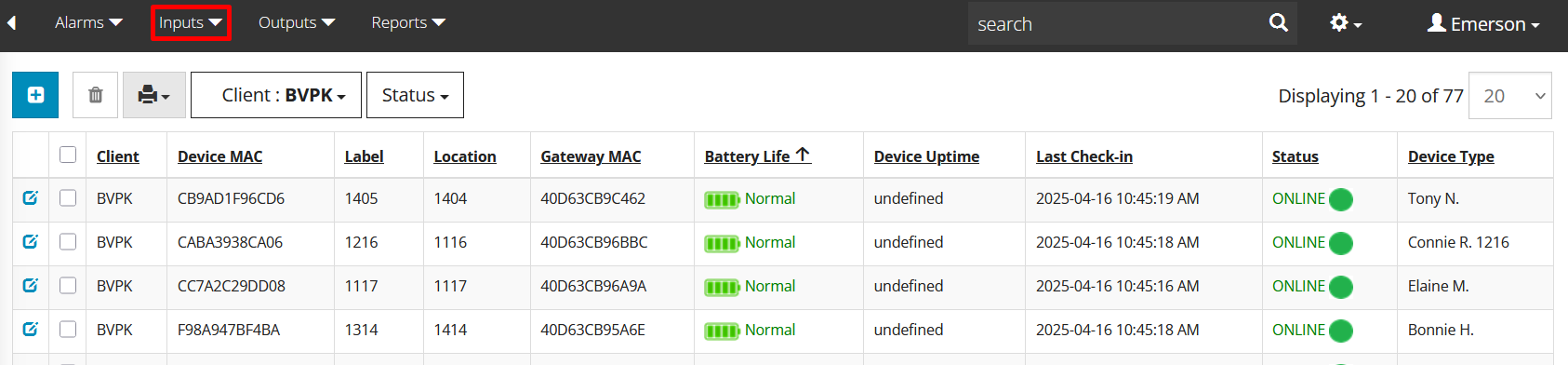
To view the current status of all pendants:
Navigate to Inputs > Pendants.
You will see a table listing all registered pendants.
Each row includes:
Label (e.g., Room number or Resident name)
MAC Address
Location
Battery Status
Signal Strength
Last Activity Time
This information helps verify if the pendant is active, connected, and functional. You can also identify low battery devices for maintenance.
¶ How to Add a Pendant on OneHusaria
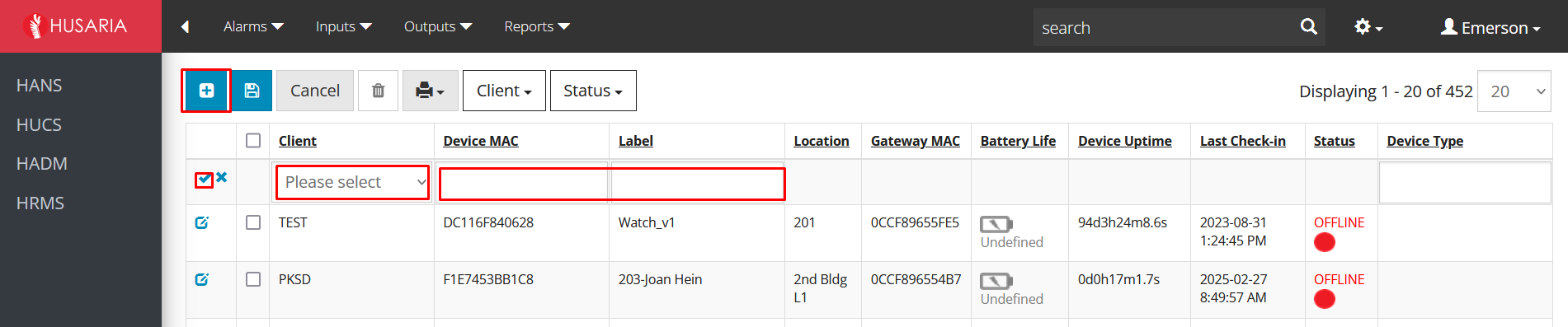
Go to Inputs > Pendants.
Click on the + tab.
In the new window:
Column 1: Select customer.
Column 2: Enter Device MAC.
Column 3: Enter Label.
Click Save.
¶ Modifying an Existing Pendant
To update a pendant’s label, location, or details:

Go to Inputs > Pendants.
Find the pendant using the Label or MAC Address.
Click the Edit icon next to the desired pendant.

Modify the fields as needed:
Label: Useful if the resident moves rooms or if the pendant is reassigned.
Location: Assign to a specific floor or wing.
Click Save to update the settings.
¶ Deleting/Removing a Pendant
To remove a pendant from the system:
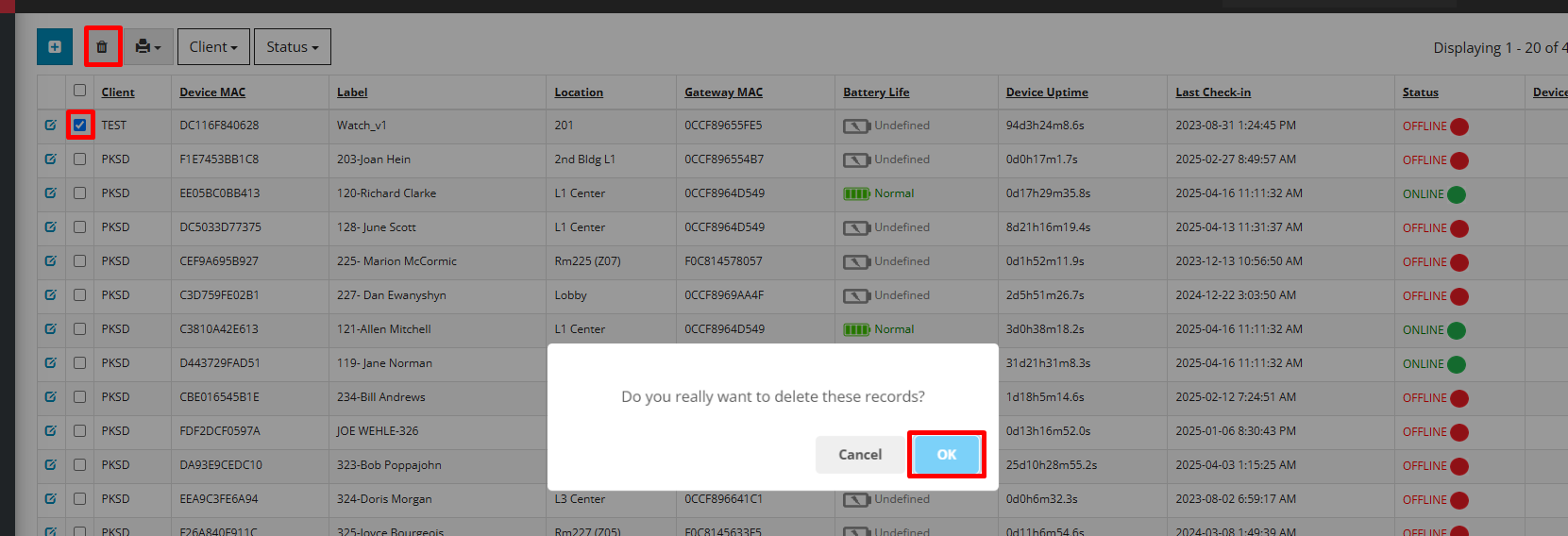
Go to Inputs > Pendants.
Select the checkbox next to the pendant you want to delete.
Click the “Delete” button on the top toolbar.
Confirm the deletion when prompted.
Note: Once deleted, the pendant will no longer send alerts to the system. Use with caution and only if a device is permanently decommissioned.
¶ Configuring Gateways
¶ Gateway LED Indicators
![20260406_074314[1].jpg](/hans/devicemgmt/20260406_074314%5B1%5D.jpg)
- Top: Cloud Icon – Communication/Connection with the server. Solid green LED indicates the gateway is connected to the server, and there are no pendants within range for the gateway to receive pendant transmissions. Blinking green LED indicates the gateway is connected to the server and there is a pendant within range that is transmitting/communicating with the gateway.
- Middle: Globe Icon – Type of network connection. Solid green LED indicates the gateway is connected to the network via ethernet. Solid blue LED indicates the gateway is connected to the network via WIFI.
- Bottom: Power icon – Green LED indicates the power on. Red LED indicates the gateway will need service or need to be replaced.
¶ Configuring Locations
Locations are sensors or hubs that collect information from wireless (pendant) devices and report to the central server status about the devices and the device locations.
In a HANS install with wireless pendants, you will see Gateways/sensors on the ceilings throughout your building for location reporting.
All Location equipment is typically configured (installed/programmed/commissioned) by your System Installer.
Locations can renamed to provide better descriptors to staff to help identify locations of any alerts. Locations are often updated when the purpose of a space changes; i.e. a space was originally a multi-purpose activity room but has changed to a fitness room.
¶ Configuring Controllers
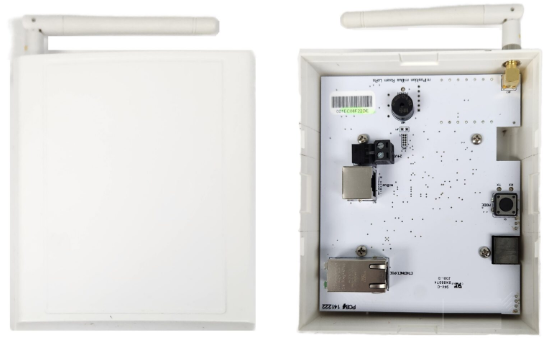
- Configuring Controllers
¶ Hardwired Pullcord Controllers
Step 1: Log in to the HANS admin portal.
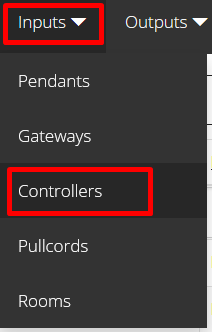
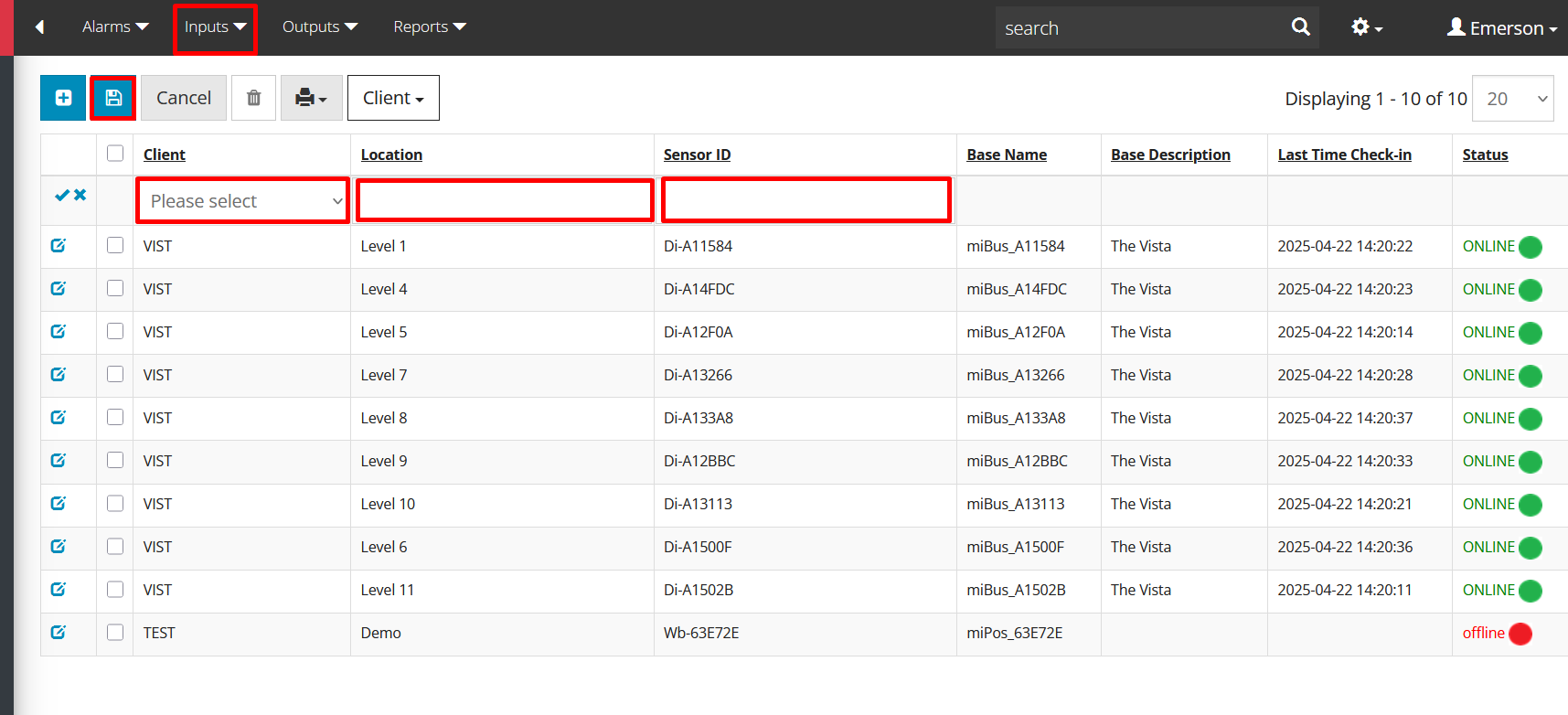
Step 2: Navigate to Inputs > Controllers.
Step 3: Click on the Edit (pencil) icon next to the controller.
Step 4: Assign controller to a specific room/floor.
Step 5: Save configuration and verify communication (check the "Last Time Check-in" and status).
¶ 2. LED Light Indicators
Green Light: Device is online and functioning normally.
Red Light: Device is offline or not checking in.
Amber Light (if applicable): Device warning (low battery, signal drop, etc.).
¶ Configuring Pullcords
Hardwired Pullcords
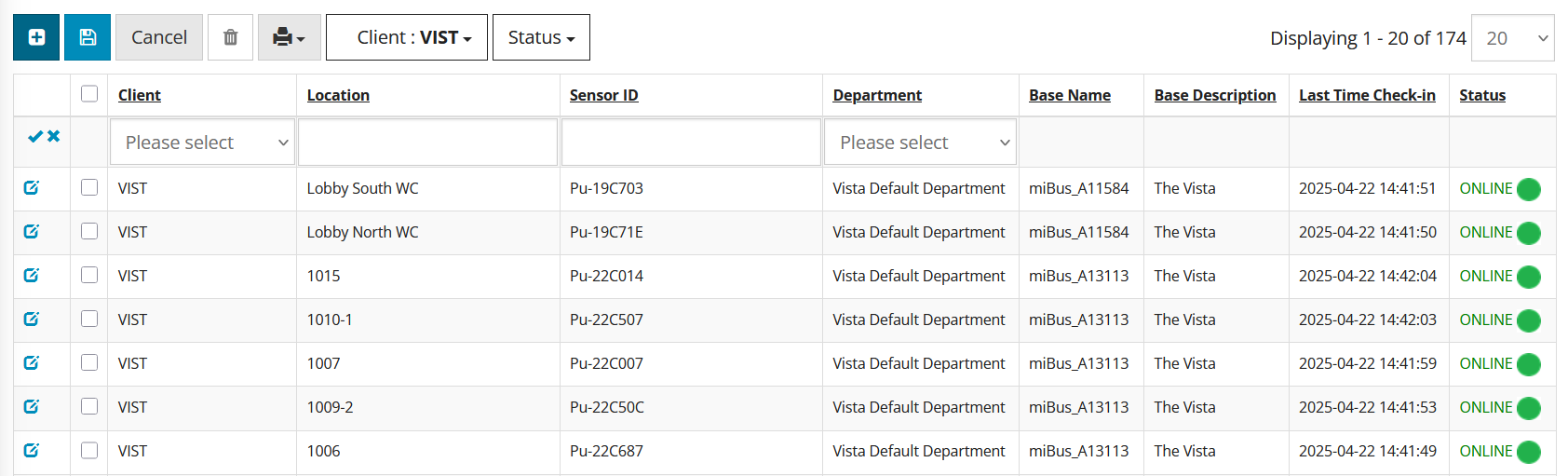
Step 1: Locate the Sensor ID of the pullcord device in the portal.
Step 2: Click the Edit icon to access settings.
Step 3: Update the room name/descriptor (e.g., “Level 5 - Room 503”).
Step 4: Save and test the pullcord trigger (you should see it logged in the alert log/dashboard).
Step 5: Ensure correct escalation path/group is applied.
¶ Configuring Outsource
Bed Stations – How They Work
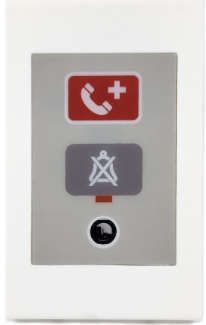
What It Is:
Wall-mounted or bedside call points with:
Call button (may be on a pendant)
Cancel button
Optional staff present button
Status LED
####How It's Integrated:
Dry Contact Output from the bed station (when call is pressed)
Wired to MiAlert Gateway or Controller (DI Input)
When triggered:
MiAlert registers the event
Alert is logged and escalate
Message is sent to designated staff phones or apps (via HANS)
¶ Cancel/Presence Logic:
Cancel button closes the circuit (MiAlert registers the reset)
Presence button may update the status as “staff attended” if wired
Example Flow:
Resident presses bedside button.
Bed station relay sends signal to MiAlert DI.
MiAlert logs: “Call – Room 202 Bed A”.
Alert goes to assigned phone.
Staff presses Cancel button on wall station.
Alert is cleared in system.
¶ Bath Stations – How They Work
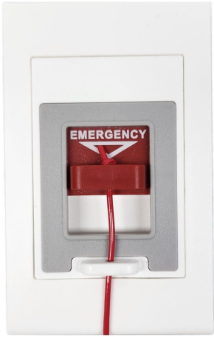
�What It Is:
Waterproof pullcord or button located in the washroom or shower.
Usually triggers high-priority alerts (e.g., “Emergency”).
No staff present button (in most cases).
How It's Integrated:
Same concept as bed stations:
Connected to MiAlert DI input or Jeron output
Signals are interpreted as emergency-leve
Often mapped with distinct sound or color-coded alerts
Example Flow:
Resident pulls bath cord.
Alert: “Emergency – Room 105 Bathroom” shows up in MiAlert.
High-priority message is sent immediately to staff.
Staff clears the call at the wall cancel button.
¶ ROOMS
Add a Room
- On the HANS menu bar select Inputs > Rooms
- Click on the + tab to open an InLine in the window
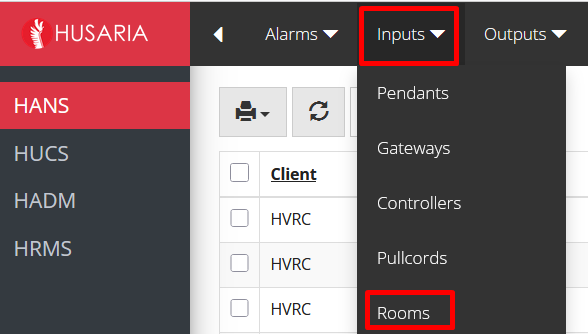
- In the new InLine, populate the following:
- Client: Select the customer you want to add the room to
- Room Number: Enter the Room Number the Device resides in
- Department: Use the drop-down menu to select the Department the room belongs to

-
Click the Save Check mark
-
Repeat steps above to add all Rooms.